













FREE L&D Toolkit
Create Courses, Practice Skills & Train Teams Explore Free Tools →
+1 800 513 5902

Free Moodle plugin

Paradiso for Moodle

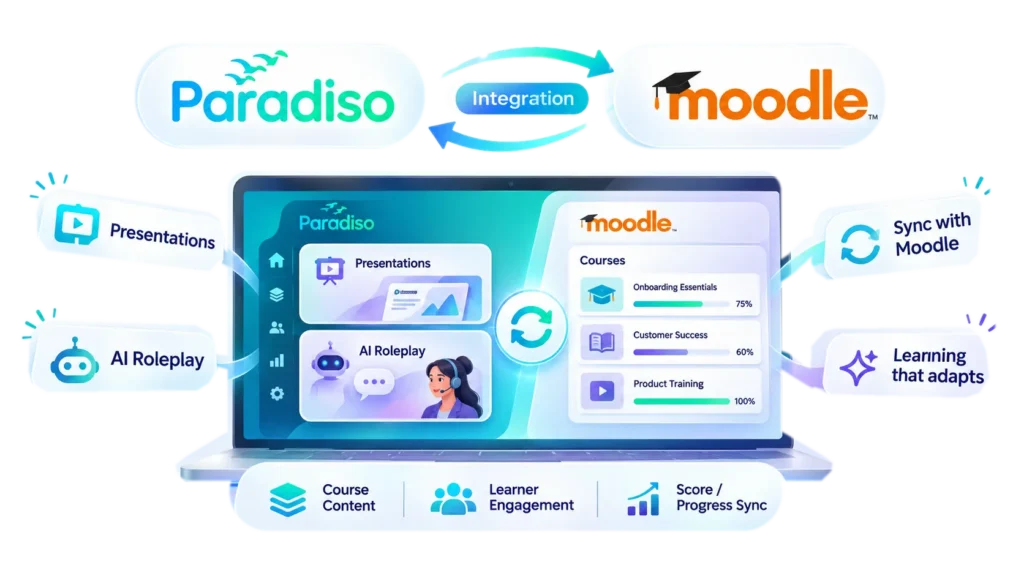
Interactive presentations and AI roleplay, inside your Moodle

Install one plugin, connect your Paradiso workspace with a click, and add Paradiso activities from the Moodle activity chooser. Learners stay in Moodle, and their scores land in the gradebook.

TRUSTED BY 1,000+ ORGANIZATIONS WORLDWIDE

How it works

How to Add Paradiso to Moodle in Three Steps

Three steps bring Paradiso presentations and AI roleplay into your Moodle courses, with no keys to copy, no second login and no grade exports.

Upload the zip on your Moodle site’s Install plugins page, or add it to your code repository. A Connect Paradiso page appears under Local plugins.

Click Connect with Paradiso, sign in to your Paradiso workspace and approve. Moodle registers Paradiso Presentations and Paradiso Roleplay and switches them on.

In any course, pick Paradiso Presentations or Paradiso Roleplay from the activity chooser, choose the content and save. Learners’ scores go to the gradebook.

The Connect Paradiso page under Local plugins in Moodle Site administration, with the Connect with Paradiso button

One click connects your Moodle site to Paradiso.

Get started

Requirements and Installation

Check four things, install the plugin with a zip or by hand, then connect your Paradiso workspace in one click.

Requirements

  • Moodle 3.9 to 5.3Including Paradiso LMS.
  • A Paradiso workspaceWith Presentations, Roleplay or both. You can create a free workspace during setup.
  • HTTPSYour Moodle site reachable over https.
  • Write access for a zip installThe web server must be able to write to Moodle’s local folder. Otherwise, add the plugin folder by hand
Download the plugin Free plugin. No keys to copy.
Moodle · Site administration

Installation

  1. Open the plugin installer
    1. Site administration
    2. Plugins
    3. Install plugins
  2. Upload the zip

    Upload the zip, then follow the screens.

  1. Unzip into your Moodle folder
    <moodleroot>/local/plmslti
  2. Finish the install
    1. Site administration
    2. Notifications

    or run

    php admin/cli/upgrade.php
Then connect Paradiso
  1. Site administration
  2. Plugins
  3. Local plugins
  4. Paradiso integration
  5. Connect Paradiso
and click Connect with Paradiso Presentations and Roleplay switched on

What you Get

What Paradiso for Moodle gives teachers, learners and admins

Everything happens inside Moodle: same courses, same login, same gradebook.

Bring Paradiso content into any course

Pick the presentation or roleplay an activity should launch. Need a different one? Add another activity and link it.
Courses built in Paradiso’s authoring tool, with video, quizzes and AI voice-over, played from your Moodle course.
Learners practise real conversations with an AI character and get a score.

One course, one login, one gradebook

Paradiso activities sit in the course alongside everything else, so learners never leave Moodle to find them.
Learners open Paradiso activities from the course with their Moodle account.
Scores go straight to the Moodle gradebook. No exports, no copying.

LTI 1.3 setup without keys

One click registers both tools. Nobody copies keys or URLs between systems.
Manual LTI 1.3 setup

Copy a tool URL, public key, login URL and client ID between Moodle and the tool, then switch it on.

Paradiso for Moodle

Click Connect with Paradiso and approve. Both tools are registered and switched on.

Built on Moodle’s own External tool (LTI 1.3), so your existing settings and permissions apply.

Add Roleplay to your workspace later, or switch to a different workspace, and reconnect from the same page.

Get Started

Bring AI Roleplay and Presentations into Moodle Today

One free plugin, one click to connect. No keys to copy.

Got Questions?

Frequently Asked Questions

Can’t find what you’re looking for? Talk to our team.
Yes. Paradiso for Moodle is a free plugin that adds Paradiso Roleplay to the Moodle activity chooser. Learners practise conversations with an AI character, and their score goes to the Moodle gradebook.

Moodle 3.9 to 5.3, and Paradiso LMS.

Install the Paradiso for Moodle plugin and click Connect with Paradiso. Then, in any course, pick Paradiso Roleplay from the activity chooser, choose the roleplay and save. Learners practise the conversation with an AI character, and their score goes to the Moodle gradebook.

Yes. Courses built in Paradiso’s authoring tool, with video, quizzes and AI voice-over, play from your Moodle course as Paradiso Presentations activities.

Yes. Generate a course with the AI Course Creator in Paradiso’s authoring tool, then add it to any Moodle course as a Paradiso Presentations activity.

No. Connect with Paradiso registers Paradiso Presentations and Paradiso Roleplay as External tools (LTI 1.3) and switches them on. Nobody copies keys or URLs between systems.

No. They open activities from Moodle, and Paradiso signs them in with their Moodle account.

Yes. Scores go straight to the Moodle gradebook. No exports, no copying.

The plugin itself stores no personal data. When a learner opens a Paradiso activity, Moodle sends their name and email to Paradiso so they can be signed in and graded.

Setup switches it on for you, and the Connect Paradiso page tells you if it is off.

×

    Paradiso For Moodle

    By submitting this form, you agree to the terms of service, privacy policy and cookie policy, and confirm that the services are for business use only, not personal or consumer use.


    WhatsApp Chat